Image Color Palette Extractor
Extract a color palette from an image with each color's share of the picture. Exact colors from flat graphics, same result every run, CSS, Tailwind, .gpl, .ase.
- Runs in your browser
- Your data never leaves your browser
- Free · No Sign-Up
Scan with WeChat to share this tool
Examples, details and FAQ Worked examples, how it compares with other tools, and answers to common questions.
Example: a Banner with a Small Logo
This 400 × 300 PNG has a navy background #1E3A8A, a near-white strip #F8FAFC across the bottom quarter and a 60 × 60 orange square #F97316. With the default 6 colors the tool returns:
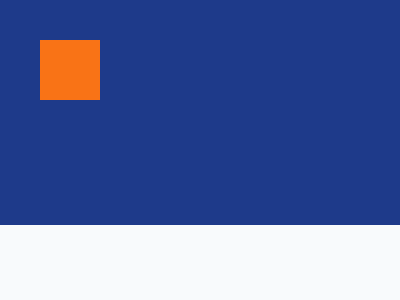
#1E3A8A72.0%#F8FAFC25.0%#F973163.0%
These are the exact source colors and the exact areas (86,400, 30,000 and 3,600 of 120,000 pixels). The status line adds that the visible pixels fall into only 3 color groups, so 3 colors are shown instead of 6. No navy–white blend appears from the edges, because the tool samples real pixels instead of a smoothed thumbnail.
Turn on Ignore near-white and the strip drops out: #1E3A8A 72.0% and #F97316 3.0%, with 25.0% of the image reported as ignored. The shares stay of the whole image, so they still match the areas you measured.
Example: The Starry Night
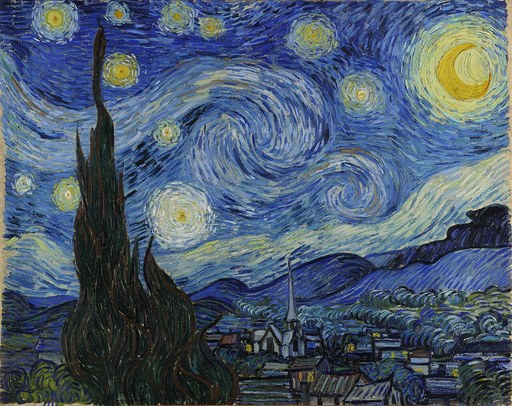
Van Gogh painted The Starry Night in June 1889; the image above is a 512-pixel copy of the public-domain Google Art Project scan on Wikimedia Commons. At 6 colors with Emphasize vivid accents on (the default), the cluster averages are:
#212728 25.7%, #637B94 21.2%, #435B85 20.9%, #263767 13.9%, #8D9F9F 11.6% and the yellow of the stars and moon, #AAAC78 6.3%.
With the option off, clusters follow area alone and the yellow disappears into a gray-green cluster: #4C6B93 20.1%, #445C8B 18.6%, #1B1D1B 17.5%, #2B2D2B 16.6%, #6B839C 16.2%, #93A49B 10.6% (most common shades).
The yellow cluster’s average #AAAC78 mixes the stars with the pale sky around them; its most common shade is #ABB39C. For paintings and photos the average reads better; for logos and UI screenshots the most common shade gives the exact flat color.
Example: a Logo on a Transparent Background
This 400 × 400 PNG has a red circle #E11D48 with a yellow center #FACC15 and nothing else. At 2 colors: #E11D48 82.6% and #FACC15 17.3%, and the status line reports that 71.4% of the pixels are transparent and not counted. Pixels count with their opacity, so the anti-aliased edge cannot add a black or gray color.

How the Palette Is Computed
- Sampling. Images up to 262,144 pixels are read in full; larger ones are read at a reduced size without smoothing, so every sample is a real pixel.
- Color groups. Pixels are counted in 32,768 groups (32 levels per channel, each covering 8 of the 256 values), the same 5-bit precision as the median-cut quantizer in Color Thief.
- Clustering. The groups are clustered with weighted k-means in OKLab, where straight-line distance follows how different two colors look. Seeds are chosen in a fixed order (heaviest group first, then the largest weight × squared distance), so nothing is random.
- Vivid accents. With the option on, hue and chroma differences count twice in the distance, so a small saturated area keeps its own cluster.
- Merging. Clusters less than 0.02 apart in OKLab are merged; 0.02 is the just-noticeable difference that CSS Color 4 uses for gamut mapping.
Export and Palette Files
Code exports name the colors palette-1 to palette-n in screen order, with each share as a comment. Values can be hex, rgb(), hsl() or oklch(), written with just enough decimals to give back the same 8-bit color. The Tailwind v4 export is an @theme block (bg-palette-1 works at once). The .gpl file follows the GIMP palette format and opens in GIMP, in Inkscape (copy it into the palettes folder) and in Krita. The .ase file is Adobe Swatch Exchange, which Illustrator, Photoshop and InDesign load as a swatch library.
Compared with Other Extractors
Tested on 2 October 2026:
- Color Thief 2.7.0 (npm
colorthief, median cut) returns the three banner colors exactly but gives no shares. node-vibrant 4.0.4 sorts colors into six roles (Vibrant, Muted and so on) and finds the yellow in The Starry Night, but rebuilds colors from 5-bit groups: the banner navy comes back as#1C3C8Cinstead of#1E3A8A. - imageonline.io returns the banner colors exactly, without shares. Pantone Tools rounds every channel to multiples of 32: the banner becomes
#002080,#E0E0E0and#E06000, plus a navy–white blend#8080C0that is not in the image. - Coolors and ColorKit are pickers: they place five points on the image and use the colors under them, so the result depends on where the points land, not on area.
imageonline.io and Pantone Tools made no network request with the image after it was opened (checked in the browser’s resource timing list).
Limits
- Images above 262,144 pixels are sampled, so a detail smaller than a few pixels of the reduced image can be missed.
- A most common shade is exact only when one color fills more than half of its color group (32 levels per channel, each covering 8 of the 256 values); otherwise it is that group’s average.
- Colors outside sRGB, such as in Display P3 photos, are clipped to sRGB. After the palette appears, the tool reads the same sampled pixels again in Display P3 and the status line gives the share of fully opaque pixels outside sRGB. An opened file is decoded for this check in a background worker where the browser supports it (OffscreenCanvas), so converting a large photo to Display P3 does not run on the page’s thread (the note can arrive a few seconds after the palette); the sample illustration and SVG files are read here in strips of 16 rows. If the browser cannot draw in Display P3, the status line says the check is unavailable.
- Animated GIFs give the palette of the first frame. HEIC opens only in Safari; camera RAW files need converting first.
To pick one exact pixel instead of a palette, use the color picker. To see how the palette looks to people with color vision deficiency, paste it into the Color Blindness Simulator, and check text on it with the Color Contrast Checker.
FAQ
Is my image uploaded?
No. The browser decodes the image, the tool counts its pixels and clusters them in JavaScript in your tab, and the page sends no request with the image or the colors. Only your settings (number of colors, sort, swatch mode, filters, export format) are saved in the browser; the image and the palette are not.
Why do I get the same palette every time?
The clustering has no random step. It starts from the heaviest color group, adds seeds in a fixed order and breaks ties by index, so the same image and the same settings always give the same colors and shares. Many extractors seed k-means at random, and their palette changes when you run them again.
What does the percentage on each color mean?
It is the share of the visible image that belongs to that color's cluster. Pixels count with their opacity, and fully transparent pixels are not counted. Pixels removed by Ignore near-white or Ignore near-black still count in the total, so the shares then add up to less than 100% and the status line says how much was ignored.
Why does it show fewer colors than I asked for?
The tool groups pixels into 32,768 color groups (32 levels per channel, each level covering 8 of the 256 values). If the visible pixels fall into fewer groups than the number you asked for, every group becomes its own color and the status line says so. Clusters that end up less than 0.02 apart in OKLab are also merged, because they would look the same.
Which apps open the .gpl and .ase files?
The .gpl file is the GIMP palette format, which GIMP, Inkscape and Krita read. The .ase file is Adobe Swatch Exchange, which Illustrator, Photoshop and InDesign load as a swatch library; Krita and GIMP can import it too. Both files hold the colors in the order shown, named by their hex value.